设置导航
¥Setting up navigation
清晰简洁的导航结构是良好项目文档的重要方面。Material for MkDocs 提供了多种选项来配置导航元素的行为,包括选项卡和部分,以及其旗舰功能之一:即时加载。
¥A clear and concise navigation structure is an important aspect of good project documentation. Material for MkDocs provides a multitude of options to configure the behavior of navigational elements, including tabs and sections, and one of its flagship features: instant loading.
您可以在页脚中以及使用标签插件配置附加导航。博客插件也设置了附加导航。
¥Additional navigation can be configured in the footer as well as with the tags plugin. The blog plugin also sets up additional navigation.
配置
¥Configuration
即时加载
¥Instant loading
5.0.0
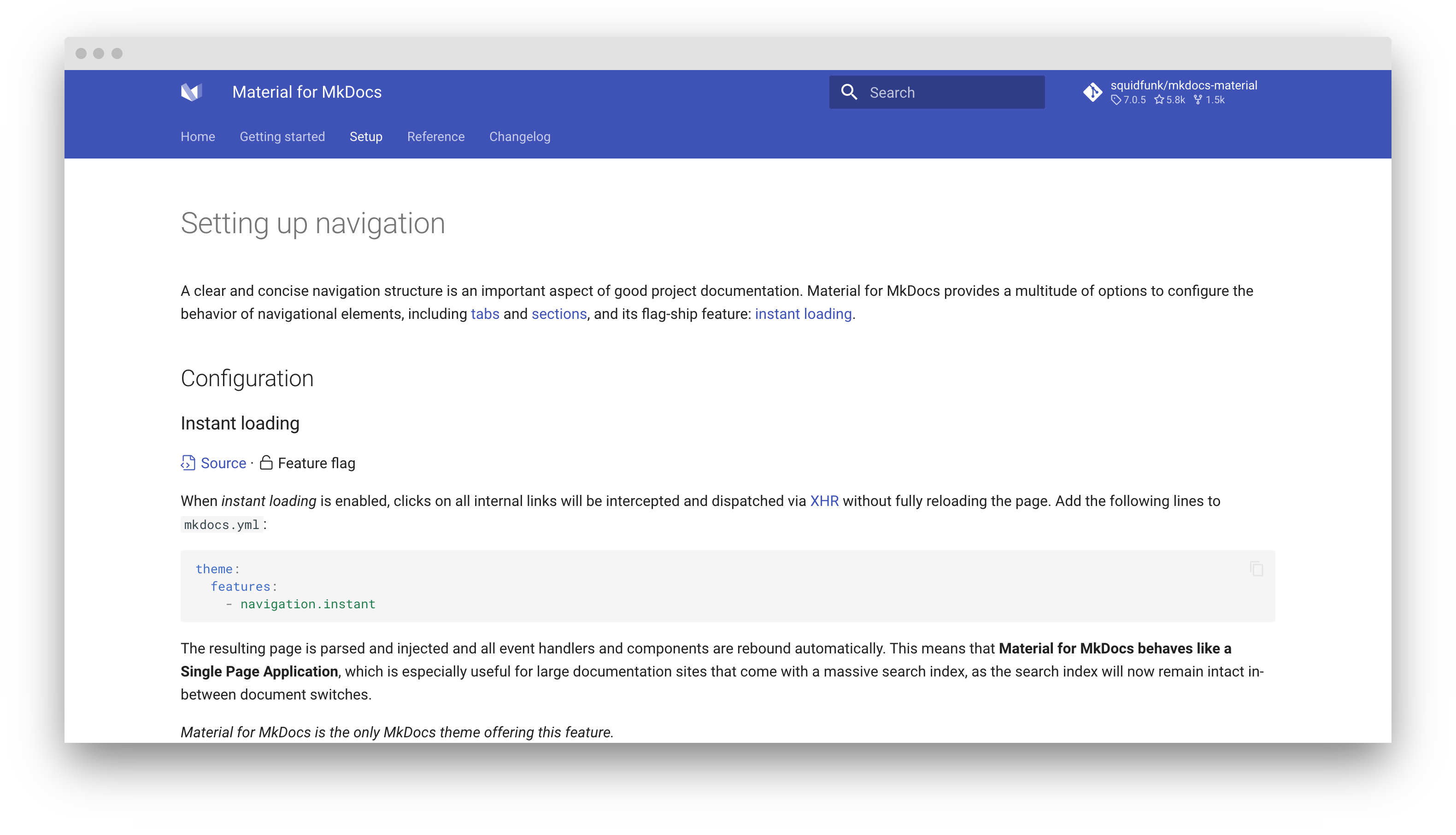
启用即时加载后,所有内部链接的点击都将被拦截并通过XHR进行调度,而无需完全重新加载页面。将以下几行添加到mkdocs.yml中:
¥When instant loading is enabled, clicks on all internal links will be intercepted and dispatched via XHR without fully reloading the page. Add the following lines to mkdocs.yml:
生成的页面会被解析并注入,所有事件处理程序和组件都会自动重新绑定,也就是说, Material for MkDocs 现在的行为就像一个单页应用程序。现在,搜索索引在导航过程中依然有效,这对于大型文档站点尤其有用。
¥The resulting page is parsed and injected and all event handlers and components are rebound automatically, i.e., Material for MkDocs now behaves like a Single Page Application. Now, the search index survives navigation, which is especially useful for large documentation sites.
必须设置site_url设置
¥The site_url setting must be set
请注意,使用即时导航时必须设置site_url ,因为即时导航依赖于生成的sitemap.xml文件,如果省略此设置,该文件将为空。例如:
¥Note that you must set site_url when using instant navigation, as instant navigation relies on the generated sitemap.xml which will be empty if this setting is omitted. Example:
即时预取
¥Instant prefetching
insiders-4.36.0
即时预加载是一项新的实验性功能,当用户将鼠标悬停在链接上时,系统会立即加载页面。这将减少用户感知到的加载时间,尤其是在网速较慢的情况下,因为页面在导航后即可立即访问。使用以下方式启用此功能:
¥Instant prefetching is a new experimental feature that will start to fetch a page once the user hovers over a link. This will reduce the perceived loading time for the user, especially on slow connections, as the page will be available immediately upon navigation. Enable it with:
进度指示器
¥Progress indicator
9.4.3
为了在网络速度较慢时提供更好的用户体验,您可以启用进度指示器。它会显示在页面顶部,并在页面完全加载后隐藏。您可以在mkdocs.yml中使用以下命令启用它:
¥In order to provide a better user experience on slow connections when using instant navigation, a progress indicator can be enabled. It will be shown at the top of the page and will be hidden once the page has fully loaded. You can enable it in mkdocs.yml with:
仅当页面在 400 毫秒后仍未完成加载时,进度指示器才会显示,因此快速连接永远不会显示它以获得更好的即时体验。
¥The progress indicator will only show if the page hasn't finished loading after 400ms, so that fast connections will never show it for a better instant experience.
即时预览
¥Instant previews
insiders-4.52.0
即时预览是一项全新功能,允许用户无需导航至其他网站即可预览文档。此功能有助于帮助用户了解上下文。任何带有data-preview属性的标题链接均可启用即时预览:
¥Instant previews are a brand new feature that allow the user to preview another site of your documentation without navigating to it. They can be very helpful to keep the user in context. Instant previews can be enabled on any header link with the data-preview attribute:
限制
¥Limitations
即时预览仍处于实验阶段,目前仅限于 headerlinks。这意味着,您可以在任何指向其他页面 header 的内部链接上使用此功能,但不能用于其他带有id属性的元素。在收集到足够的反馈后,我们将考虑将此功能扩展到其他元素,甚至可能是任意元素。
¥Instant previews are still an experimental feature and currently limited to headerlinks. This means, you can use them on any internal link that points to a header on another page, but not other elements with id attributes. After we have gathered enough feedback, we will consider extending this feature to other, and possibly arbitrary elements.
自动预览
¥Automatic previews
insiders-4.53.0
使用即时预览的推荐方法是使用 Material for MkDocs 附带的 Markdown 扩展,因为它允许您在文档的每页或每节级别启用即时预览:
¥The recommended way to work with instant previews is to use the Markdown extension that is included with Material for MkDocs, as it allows you to enable instant previews on a per-page or per-section level for your documentation:
markdown_extensions:
  - material.extensions.preview:
      configurations:
        - targets:
            include:
              - changelog/index.md
              - customization.md
              - insiders/changelog/*
              - setup/extensions/*
以上配置是我们用于文档的配置。我们已为变更日志、自定义指南、Insiders 部分以及所有支持的 Markdown 扩展启用了即时预览。
¥The above configuration is what we use for our documentation. We've enabled instant previews for our changelogs, customization guide, and Insiders sections, as well as for all Markdown extensions that we support.
完整配置示例
¥Full configuration example
markdown_extensions:
  - material.extensions.preview:
      configurations:
        - sources: # (1)!
            include:
              - ...
            exclude:
              - ...
          targets: # (2)!
            include:
              - ...
            exclude:
              - ...
来源指定应启用即时预览的页面。如果省略此设置,则所有页面都将启用即时预览。您可以使用模式来包含或排除页面。排除是在包含的基础上进行评估的,因此如果一个页面同时符合两者,则会被排除。请注意,您可以在
configurations设置下定义多个项目,从而精确控制即时预览的显示位置。目标指定要启用即时预览的页面。这是推荐的启用即时预览的方式。
还可以通过向mkdocs.yml添加以下行来全局启用即时预览,这将为所有标题链接启用即时预览,从而无需添加数据属性:
¥Sources specify the pages on which instant previews should be enabled. If this setting is omitted, instant previews will be enabled on all pages. You can use patterns to include or exclude pages. Exclusion is evaluated on top of inclusion, so if a page is matched by both, it will be excluded.
必须设置site_url设置
¥Note that you can define multiple items under the configurations setting, which allows to precisely control where instant previews are shown.
请注意,使用即时预览时必须设置site_url ,因为即时预览依赖于生成的sitemap.xml文件,如果省略此设置,该文件将为空。例如:
¥Targets specify the pages to which instant previews should be enabled. This is the recommended way to enable instant previews.
锚点追踪
¥Anchor tracking
8.0.0
¥Instant previews can also be enabled globally by adding the following lines to mkdocs.yml, which will enable instant previews for all header links, alleviating the need to add data attributes:
启用锚点跟踪后,地址栏中的 URL 会自动更新为目录中突出显示的活动锚点。将以下几行添加到mkdocs.yml中:
¥The site_url setting must be set
导航标签
¥Navigation tabs
1.1.0
¥Note that you must set site_url when using instant previews, as instant previews rely on the generated sitemap.xml which will be empty if this setting is omitted. Example:
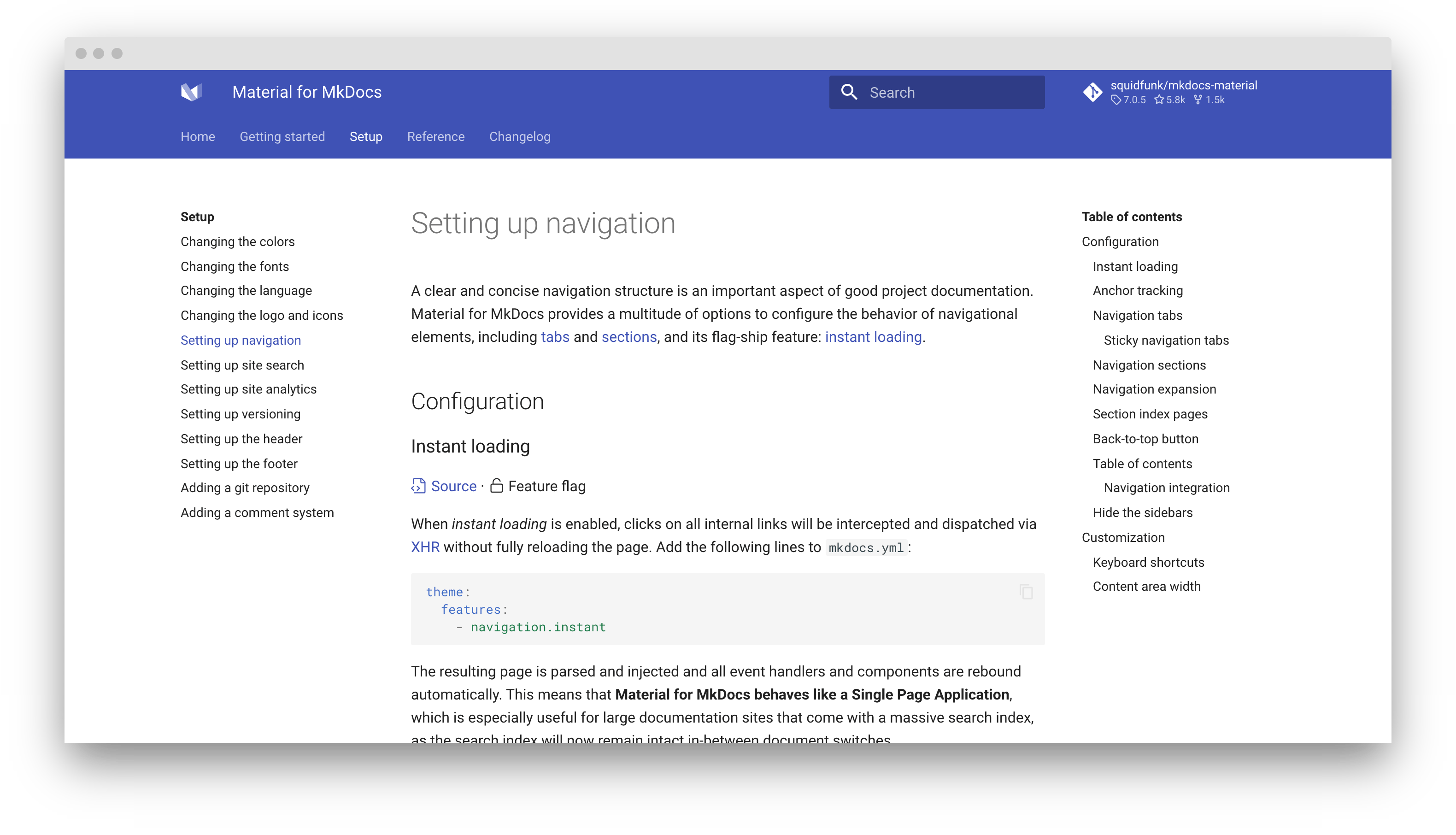
启用选项卡后,顶级部分将呈现在标题下方的菜单层中,适用于1220px以上的视口,但在移动设备上保持原样。1将以下几行添加到mkdocs.yml :
粘性导航标签
¥Sticky navigation tabs
7.3.0
¥When tabs are enabled, top-level sections are rendered in a menu layer below the header for viewports above 1220px, but remain as-is on mobile.1 Add the following lines to mkdocs.yml:
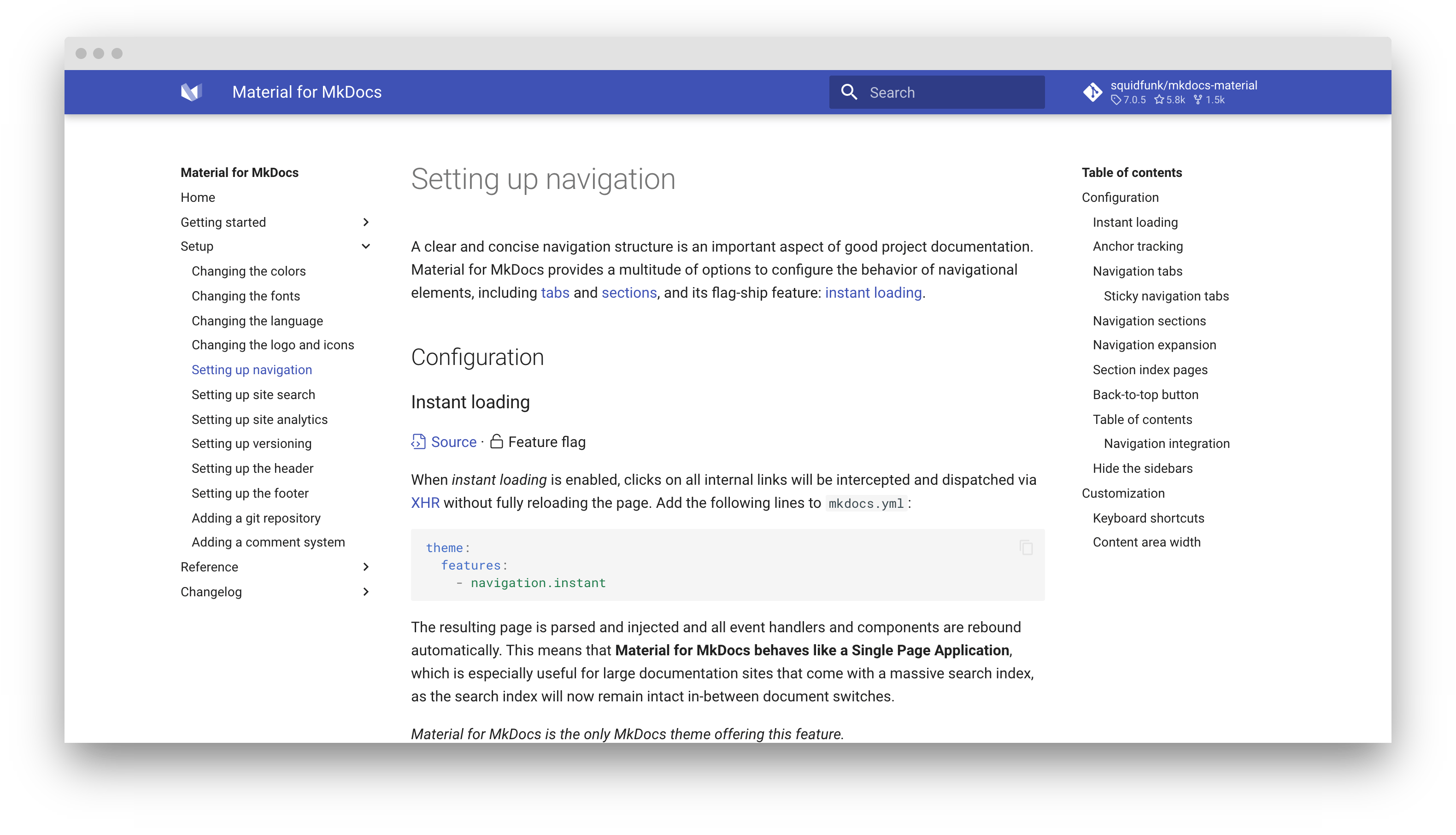
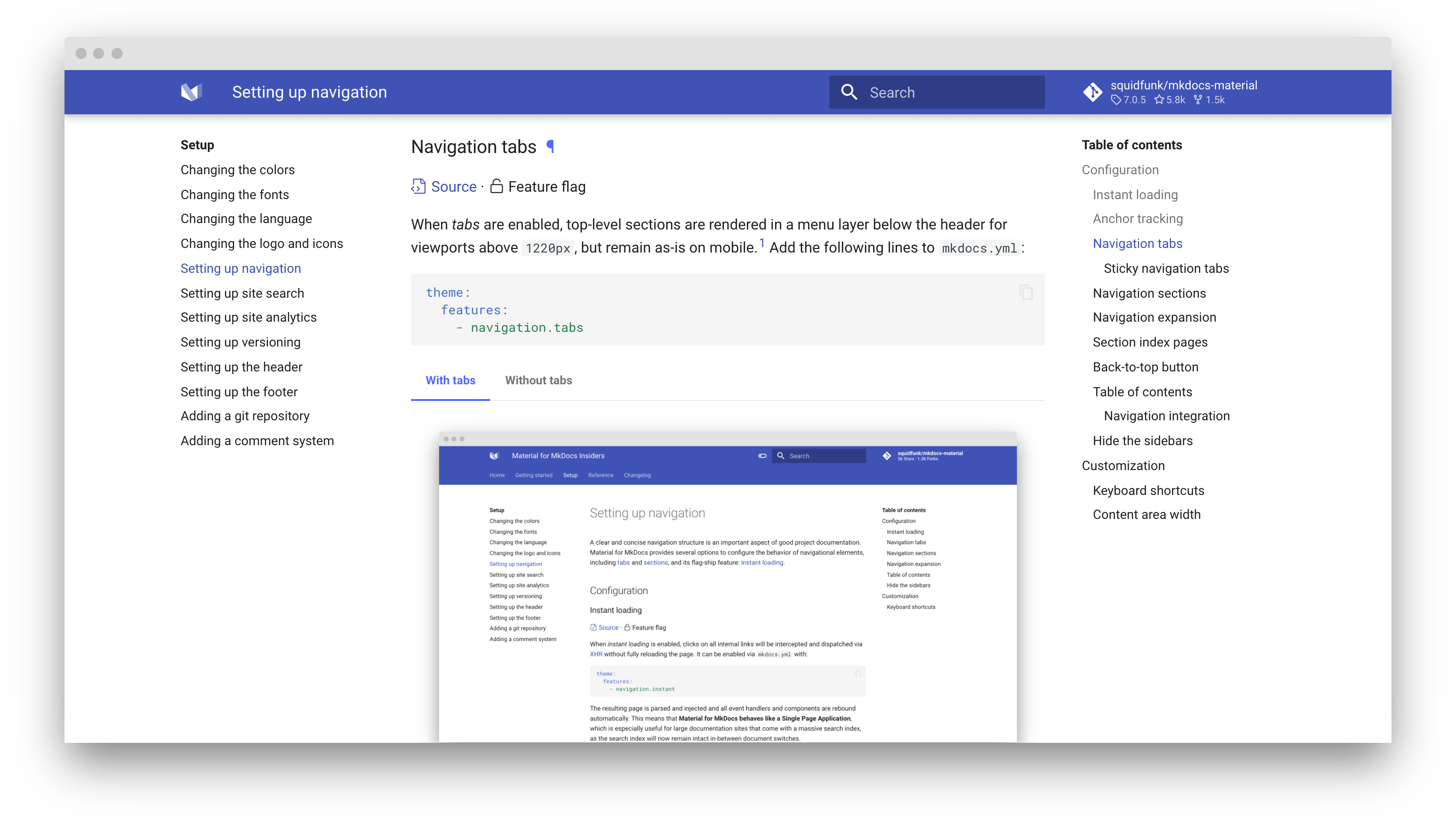
启用粘性标签后,导航标签将锁定在标题下方,并在向下滚动时始终保持可见。只需将以下两个功能标志添加到mkdocs.yml即可:

导航部分
¥Navigation sections
6.2.0
¥When sticky tabs are enabled, navigation tabs will lock below the header and always remain visible when scrolling down. Just add the following two feature flags to mkdocs.yml:
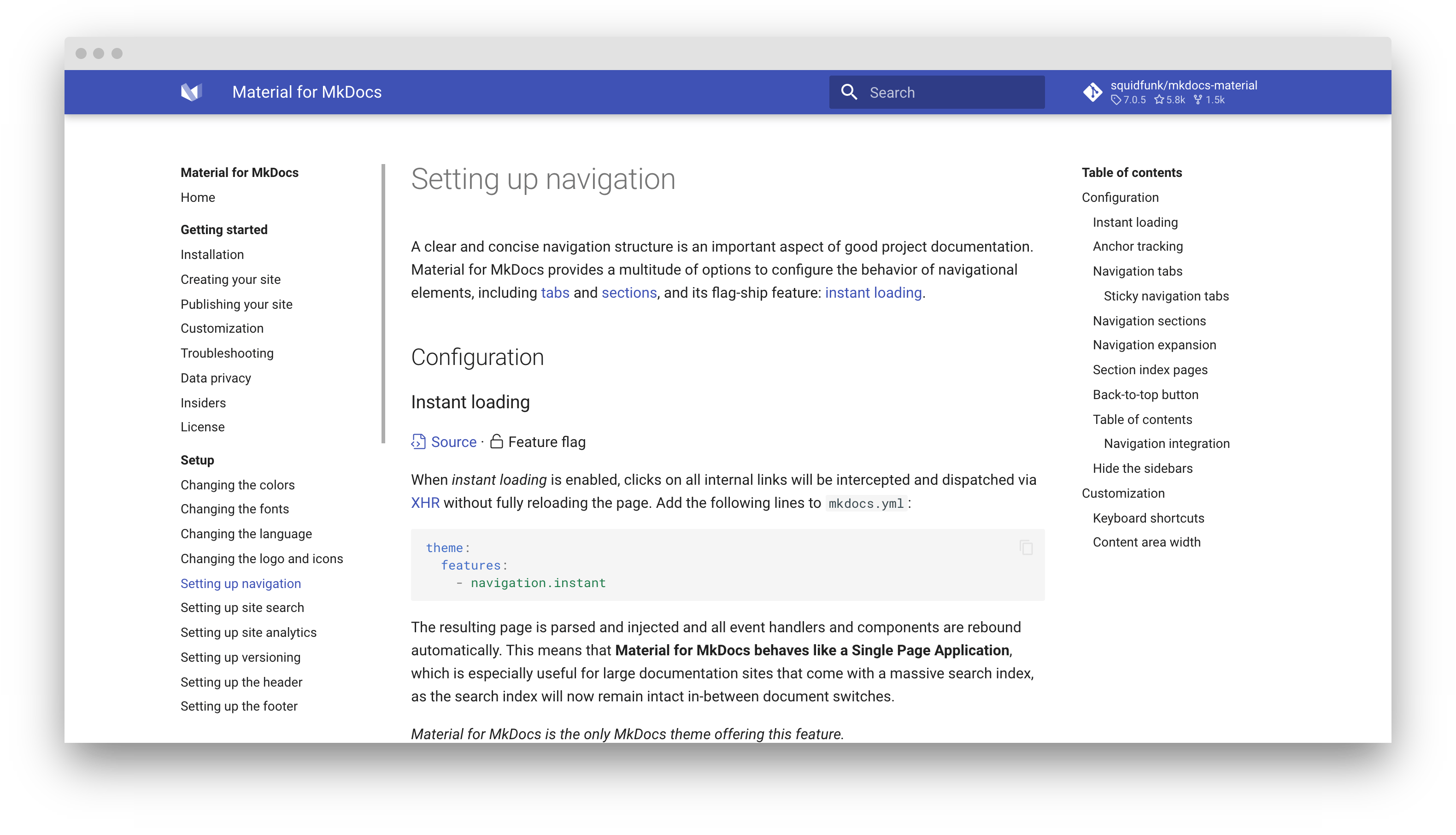
启用分区后,顶级分区将在侧边栏中以组的形式呈现,以适应1220px以上的视口,但在移动设备上保持不变。将以下几行添加到mkdocs.yml中:
navigation.tabs和navigation.sections这两个功能标志可以相互组合。如果同时启用这两个功能标志,则会为 2 级导航项渲染相应的部分。
¥When sections are enabled, top-level sections are rendered as groups in the sidebar for viewports above 1220px, but remain as-is on mobile. Add the following lines to mkdocs.yml:
导航扩展
¥Navigation expansion
6.2.0
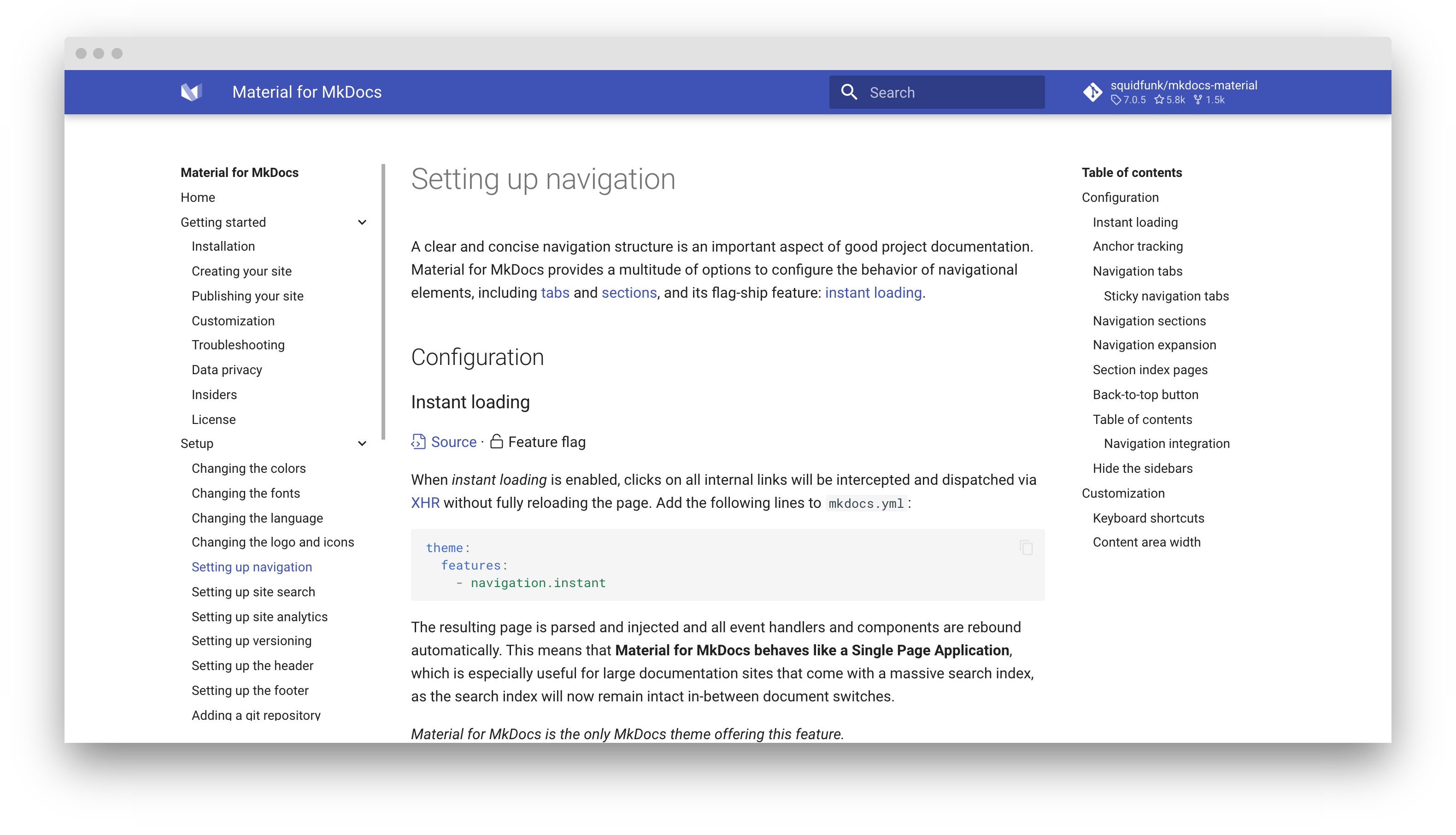
启用扩展后,左侧边栏将默认展开所有可折叠的子部分,因此用户无需手动打开子部分。将以下几行添加到mkdocs.yml :
导航路径面包屑
¥Navigation path Breadcrumbs
insiders-4.28.0
¥When expansion is enabled, the left sidebar will expand all collapsible subsections by default, so the user doesn't have to open subsections manually. Add the following lines to mkdocs.yml:
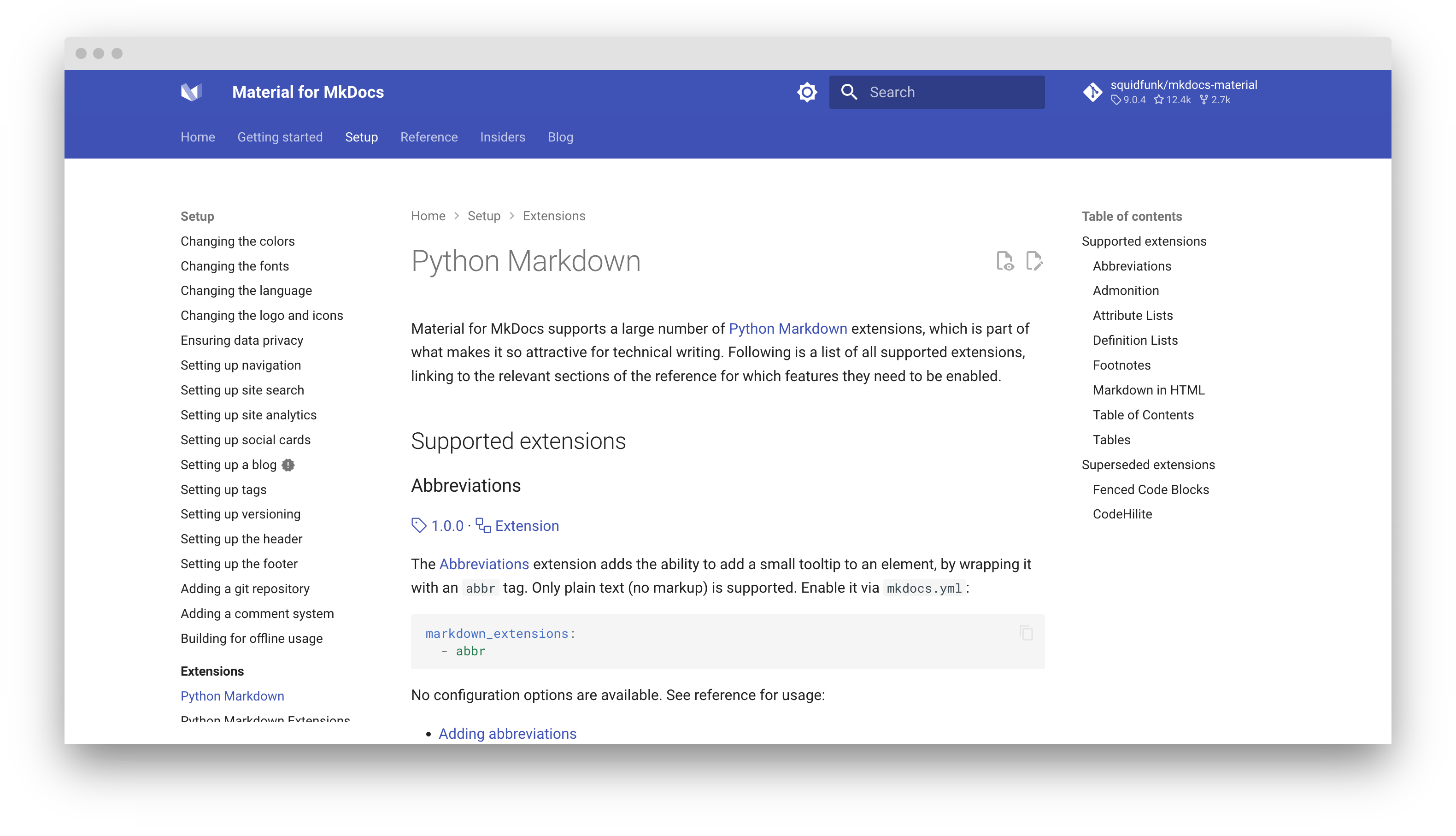
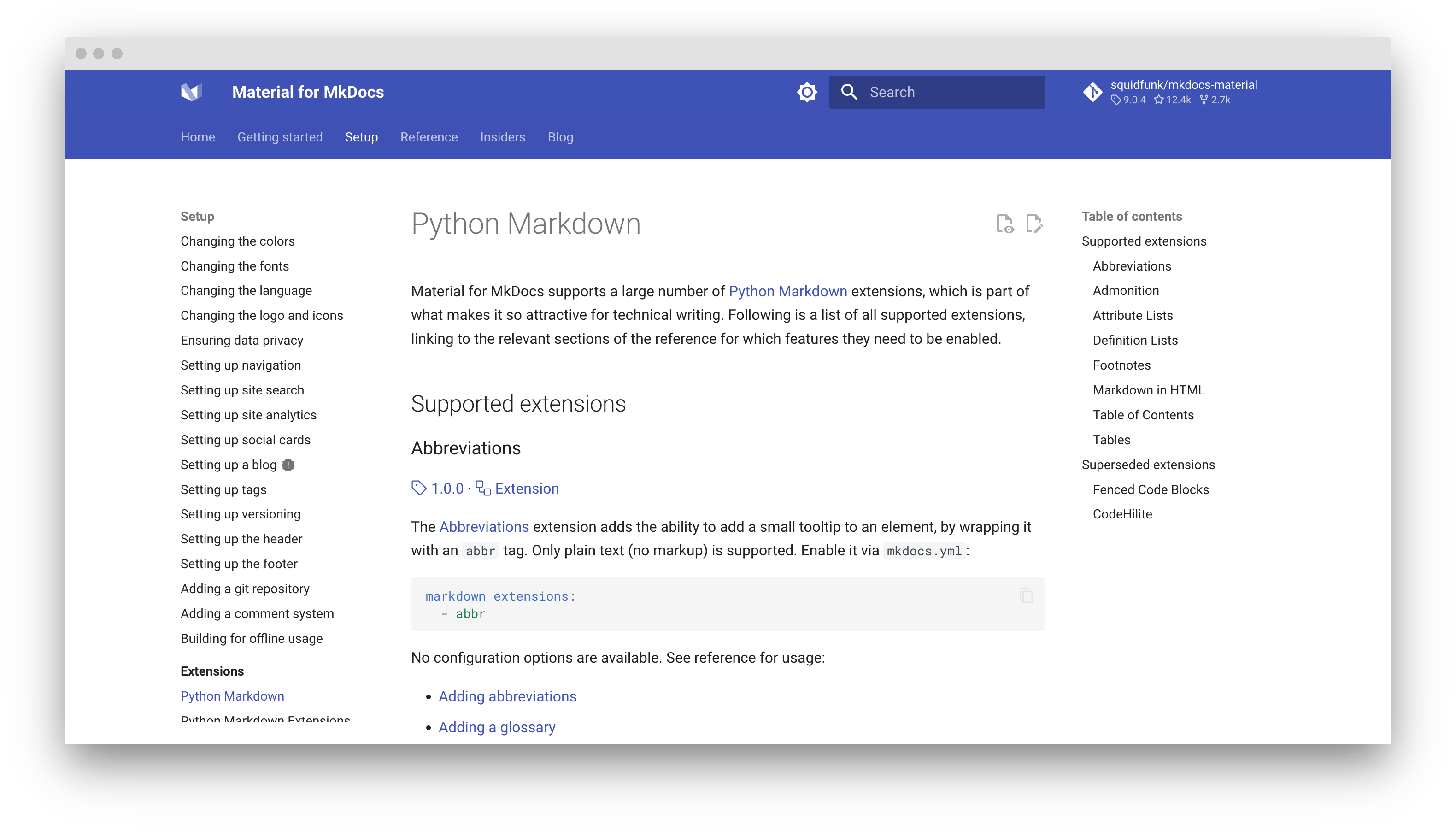
激活导航路径后,每个页面的标题上方都会呈现一个面包屑导航,这或许能让使用较小屏幕设备访问文档的用户更容易找到方向。将以下几行添加到mkdocs.yml中:
导航修剪
¥Navigation pruning
9.2.0
¥When navigation paths are activated, a breadcrumb navigation is rendered above the title of each page, which might make orientation easier for users visiting your documentation on devices with smaller screens. Add the following lines to mkdocs.yml:
启用修剪后,渲染的 HTML 中仅包含可见的导航项,从而将构建的站点的大小减少 33% 或更多。将以下几行添加到mkdocs.yml中:
此功能标志与navigation.expand不兼容,因为导航扩展需要完整的导航结构。
¥This feature flag is not compatible with
navigation.expand, as navigation expansion requires the complete navigation structure.
此功能标记对于页面数量超过 100 甚至 1,000 的文档网站尤其有用,因为导航占据了 HTML 的很大一部分。导航修剪会将所有可扩展部分替换为指向该部分首页(或部分索引页)的链接。
章节索引页
¥Section index pages
7.3.0
启用章节索引页后,文档可以直接附加到章节,这对于提供概览页面特别有用。将以下几行添加到mkdocs.yml中:
¥When pruning is enabled, only the visible navigation items are included in the rendered HTML, reducing the size of the built site by 33% or more. Add the following lines to mkdocs.yml:
此功能标志与toc.integrate不兼容,因为由于缺少空间,部分无法承载目录。
¥This feature flag is not compatible with
toc.integrate, as sections cannot host the table of contents due to missing space.
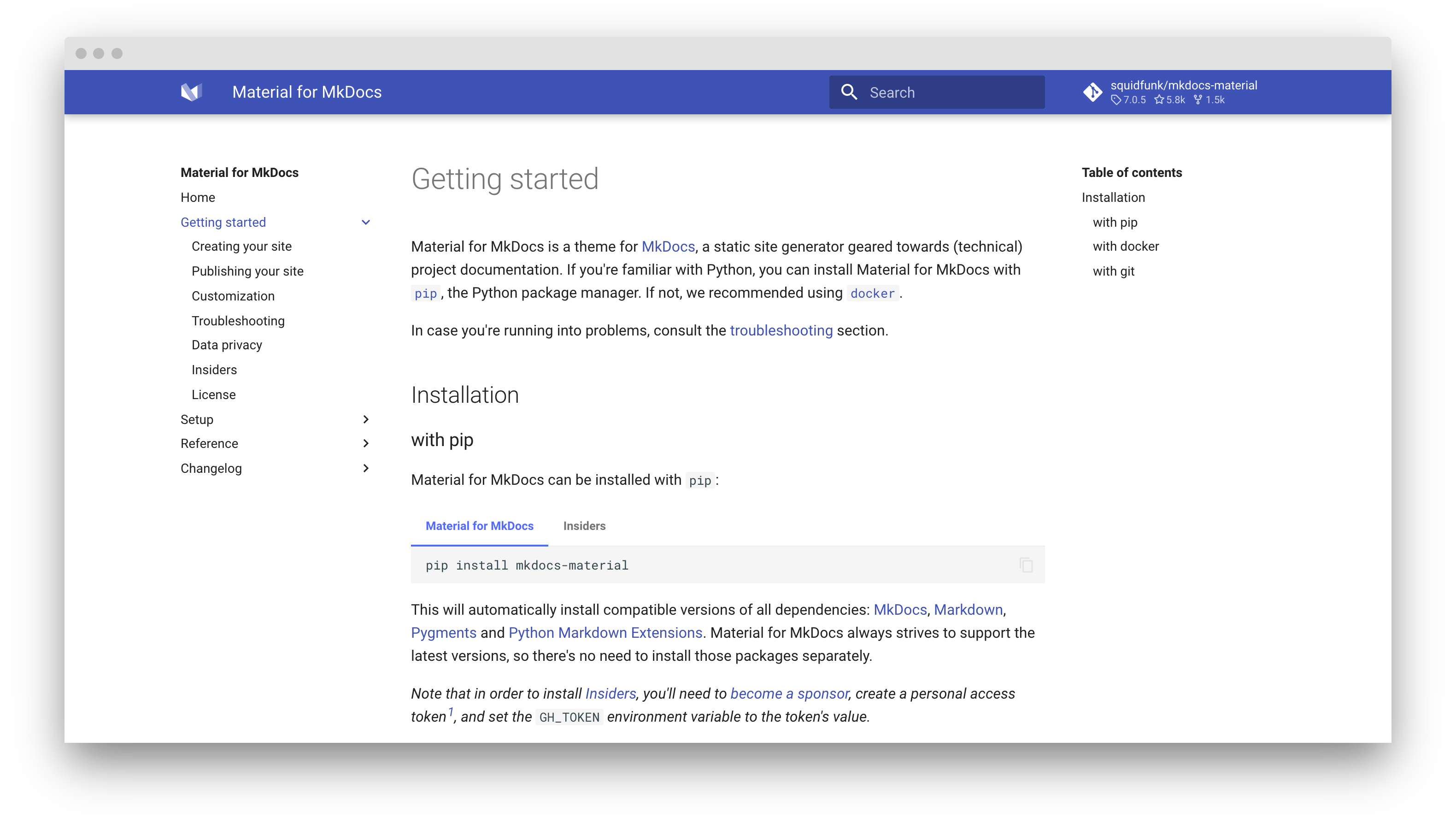
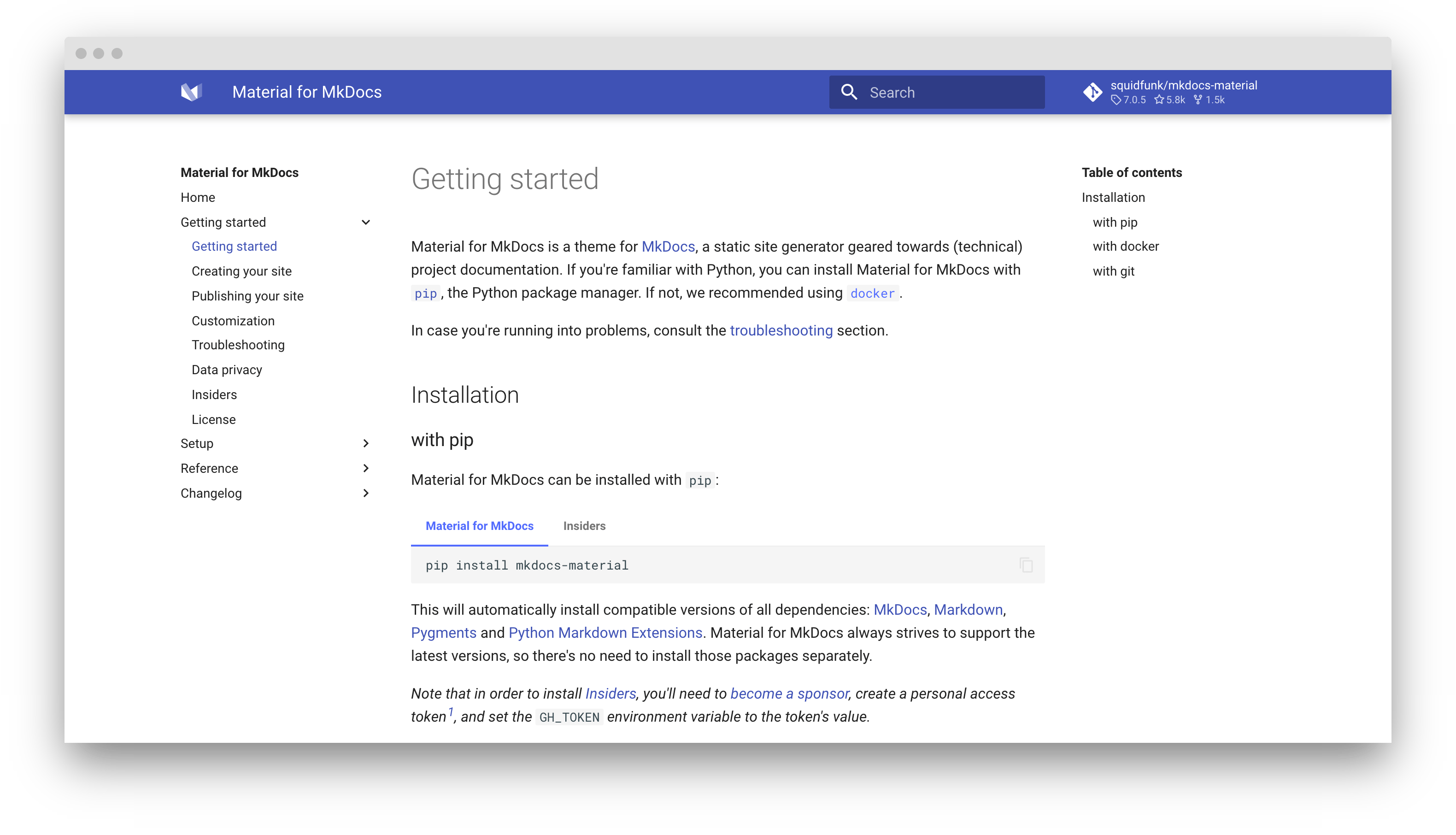
为了将页面链接到某个部分,请在相应的文件夹中创建一个名为index.md的新文档,并将其添加到导航部分的开头:
¥When section index pages are enabled, documents can be directly attached to sections, which is particularly useful for providing overview pages. Add the following lines to mkdocs.yml:
nav:
  - Section:
    - section/index.md # (1)!
    - Page 1: section/page-1.md
    ...
    - Page n: section/page-n.md
MkDocs 还将名为
README.md的文件视为索引页。¥MkDocs also considers files called
README.mdas index pages.
目录
¥Table of contents
锚点跟随
¥Anchor following
8.5.0
当启用目录的锚点跟随功能时,侧边栏会自动滚动,以便活动锚点始终可见。将以下几行添加到mkdocs.yml中:
导航集成
¥Navigation integration
6.2.0
¥In order to link a page to a section, create a new document with the name index.md in the respective folder, and add it to the beginning of your navigation section:
启用目录导航集成后,它将始终呈现为左侧导航栏的一部分。将以下几行添加到mkdocs.yml中:
此功能标志与navigation.indexes不兼容,因为由于缺少空间,部分无法承载目录。
¥This feature flag is not compatible with
navigation.indexes, as sections cannot host the table of contents due to missing space.
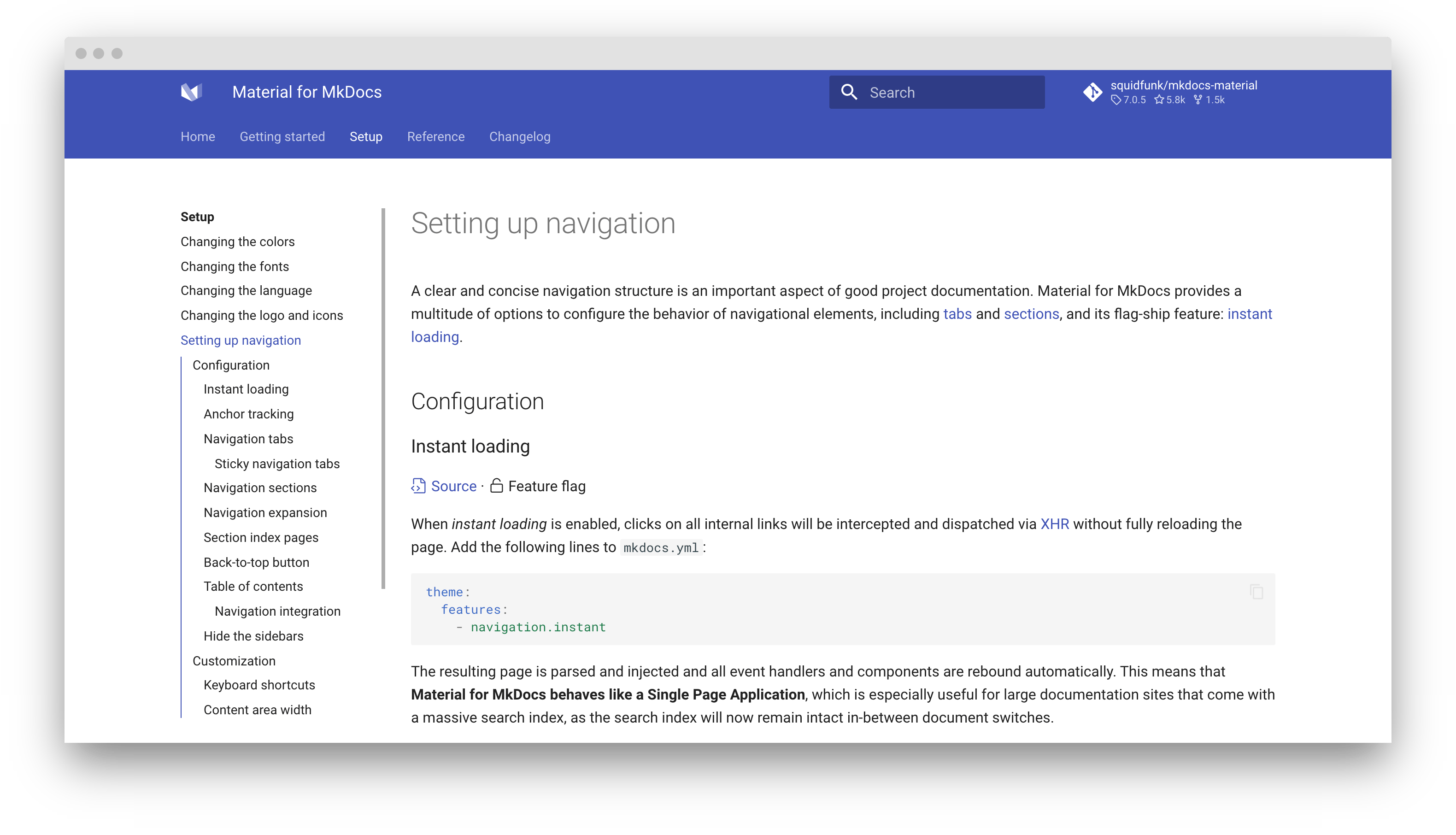
返回顶部按钮
¥Back-to-top button
7.1.0
¥When navigation integration for the table of contents is enabled, it is always rendered as part of the navigation sidebar on the left. Add the following lines to mkdocs.yml:
当用户向下滚动后再次向上滚动时,可以显示返回顶部按钮。该按钮将呈现在标题下方的正中央。将以下几行添加到mkdocs.yml中:
用法
¥Usage
隐藏侧边栏
¥Hiding the sidebars
6.2.0
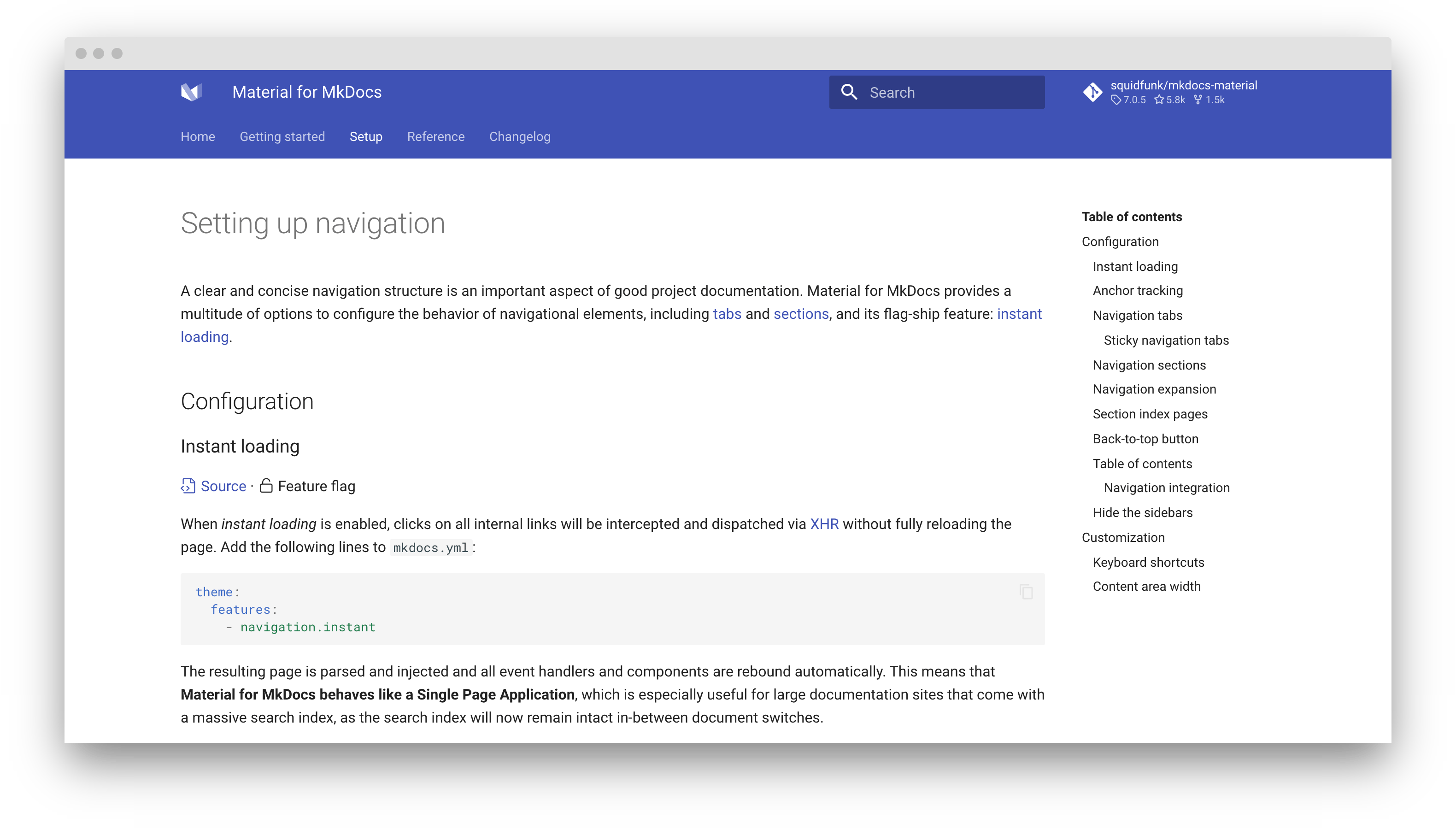
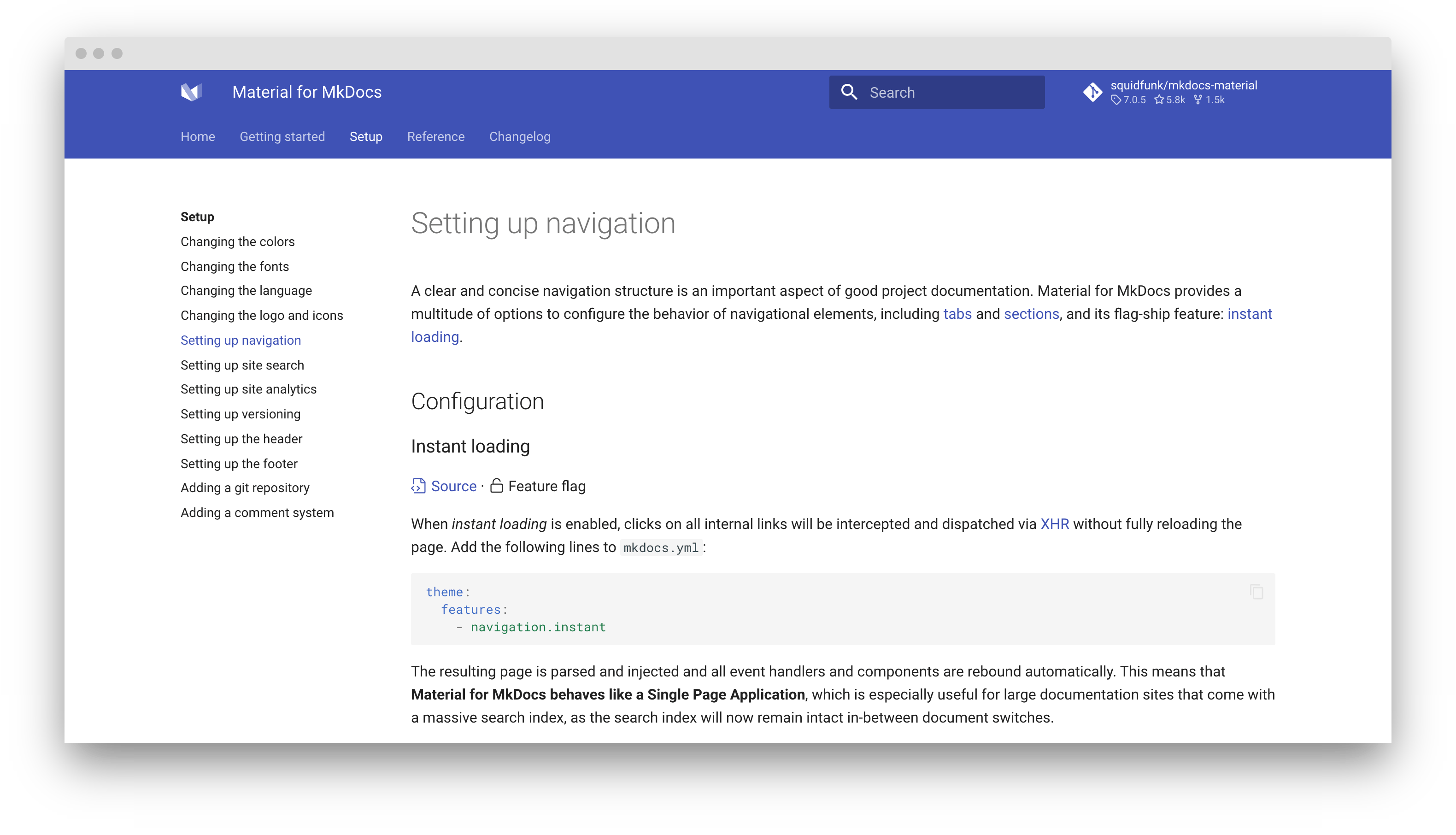
可以使用 front matter hide属性隐藏文档的导航和/或目录侧边栏。在 Markdown 文件的顶部添加以下几行:
隐藏导航路径
¥Hiding the navigation path
insiders-4.28.0
虽然导航路径呈现在主标题上方,但有时可能需要在特定页面上隐藏它,这可以通过 front matter hide属性来实现:
定制
¥Customization
键盘快捷键
¥Keyboard shortcuts
Material for MkDocs 包含几个键盘快捷键,可以通过键盘浏览项目文档。有两种模式:
search-
此模式在搜索获得焦点时处于活动状态。它提供了几个按键绑定,使搜索可以通过键盘访问和导航:
向下,向上:选择下一个/上一个结果
¥Down , Up : select next / previous result
Esc 、 Tab :关闭搜索对话框
¥Esc , Tab : close search dialog
输入:关注选定的结果
¥Enter : follow selected result
global-
当搜索元素未获得焦点且没有其他可进行键盘输入的焦点元素时,此模式处于激活状态。已绑定以下按键:
¥While the navigation path is rendered above the main headline, sometimes, it might be desirable to hide it for a specific page, which can be achieved with the front matter
hideproperty:F 、 S 、 / :打开搜索对话框
¥F , S , / : open search dialog
P , , :转到上一页
¥P , , : go to previous page
N , . :转到下一页
¥N , . : go to next page
假设你想将一些操作绑定到X键。通过使用额外的 JavaScript 代码,你可以订阅keyboard$ observable 并附加自定义事件监听器:
¥Material for MkDocs includes several keyboard shortcuts that make it possible to navigate your project documentation via keyboard. There are two modes:
keyboard$.subscribe(function(key) {
  if (key.mode === "global" && key.type === "x") {
    /* Add custom keyboard handler here */
    key.claim() // (1)!
  }
})
对
key.claim()的调用将在底层事件上执行preventDefault(),因此按键不会进一步传播并触及其他事件监听器。¥The call to
key.claim()will executepreventDefault()on the underlying event, so the keypress will not propagate further and touch other event listeners.
内容区域宽度
¥Content area width
内容区域的宽度设置为每行不超过 80-100 个字符,具体取决于字符的宽度。虽然这是一个合理的默认值,但由于较长的行往往更难阅读,因此可能需要增加内容区域的整体宽度,甚至使其延伸到整个可用空间。
¥This mode is active when the search is focused. It provides several key bindings to make search accessible and navigable via keyboard:
只需添加一个样式表和几行 CSS 即可轻松实现这一点:
¥This mode is active when search is not focussed and when there's no other focussed element that is susceptible to keyboard input. The following keys are bound:
如果您希望内容区域始终延伸到可用的屏幕空间,请使用以下 CSS 重置
max-width:.md-grid { max-width: initial; }.md-grid { max-width: initial; }.md-grid { max-width: initial; }.md-grid {最大宽度:初始; }